How to Install Linux on Your PC: The Ultimate, Stress-Free Perfect Guide

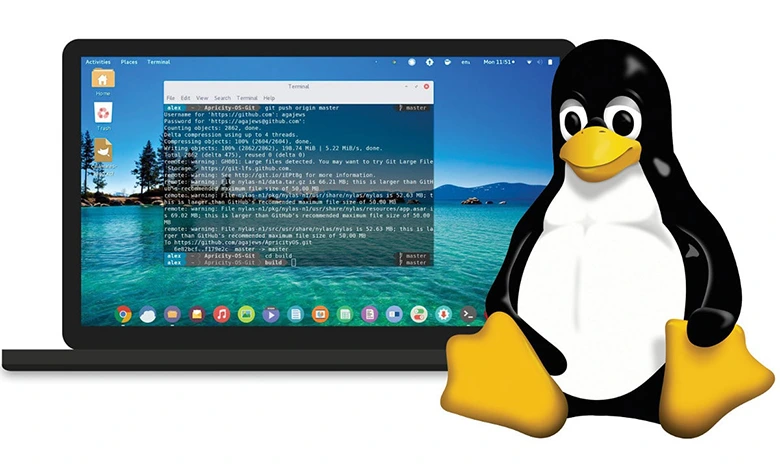
How To Install Linux On Your PC Step By Step Guide
Sure we all seen Linux on Social Media but how to install linux on your PC? there we are guideing you through the steps of installing linux on your PC.
Buckle up, we are taking off we are going inside the Linux World! here is how to install linux on your pc.
The Prerequisites
- A Flash Drive ( Minimum of 16GB recommended)
- Enough internet connection for downloading files
- A PC or Laptop that meet requirements for your selecting distro
And thats all prerequisites to install linux on your pc guys lets go into steps downloading and installing it.
Select A Distro
The Linux World is much bigger than you think but dont get anxious just select one distro and keep exploring it until you wanna change or see someone else that you like in my opinin there are i can recommend for the first time linux users : Fedora Linux , Linux Mint , Ubuntu , Zorin OS
Download The ISO Files
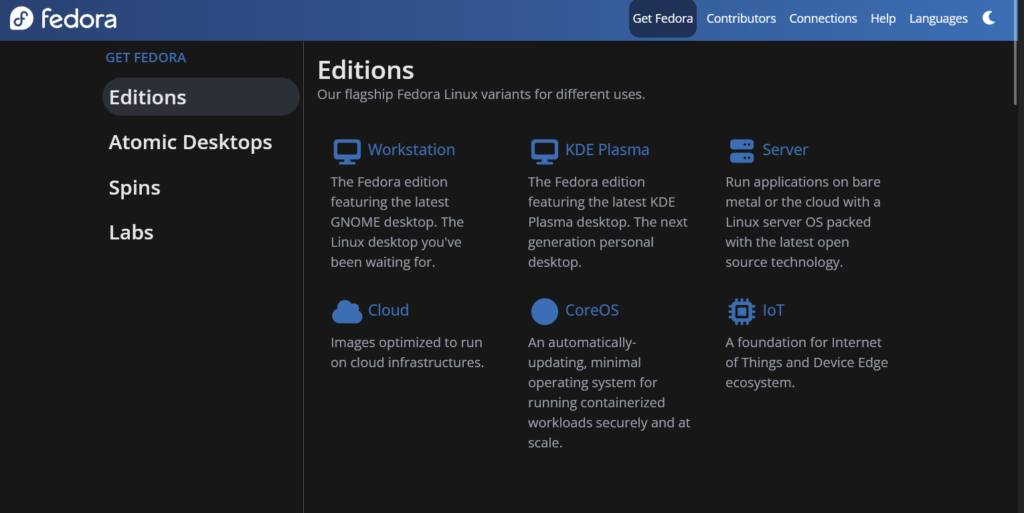
Firstly you need to install the ISO files on your computer to flash it into your drive every linux distros website should have download pages select the ISO with your PC requirements (if your pc is 32 bit select 32 bit if , if its 64 bit you should select 64 bit) You can see it through the image
Install an ISO Flasher on your PC
You should install an ISO Flasher on your PC to flash the ISO image to your drive if you’re using Windows i recommend using Rufus but you can search the web for any other image flashers
Flash The ISO to your Flash Drive
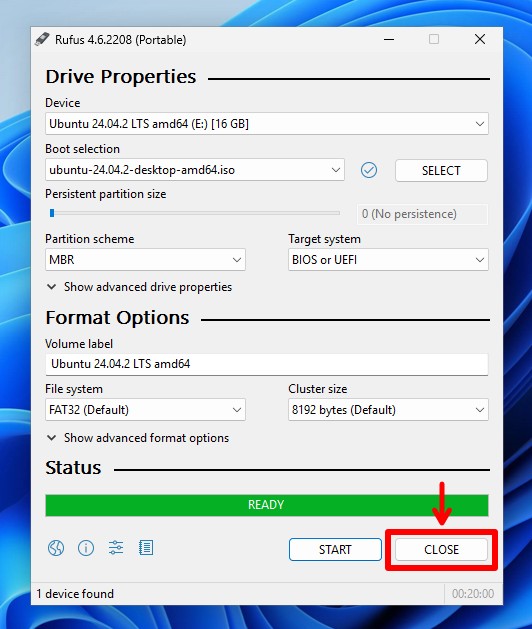
On the devices list you should see your Flash Drive and on the Boot Selection you need to select the ISO image that you Downloaded from your selected distros website also be careful on the partition scheme and target system or you may brick your device Search your partition scheme before you do this operation the File System also need to remain on FAT32 to aware any errors and after you all set press the START button and wait for the status to be READY.
Insert Your Flash Drive on your PC And Go to BIOS
First insert your flash drive on your PC then you should reboot your PC and go to BIOS. Every PC manufacturer has different BIOS combinations but you may search it on Google and after you get into bios go to Boot Options and set your Flash Drive as 1. Boot Priority
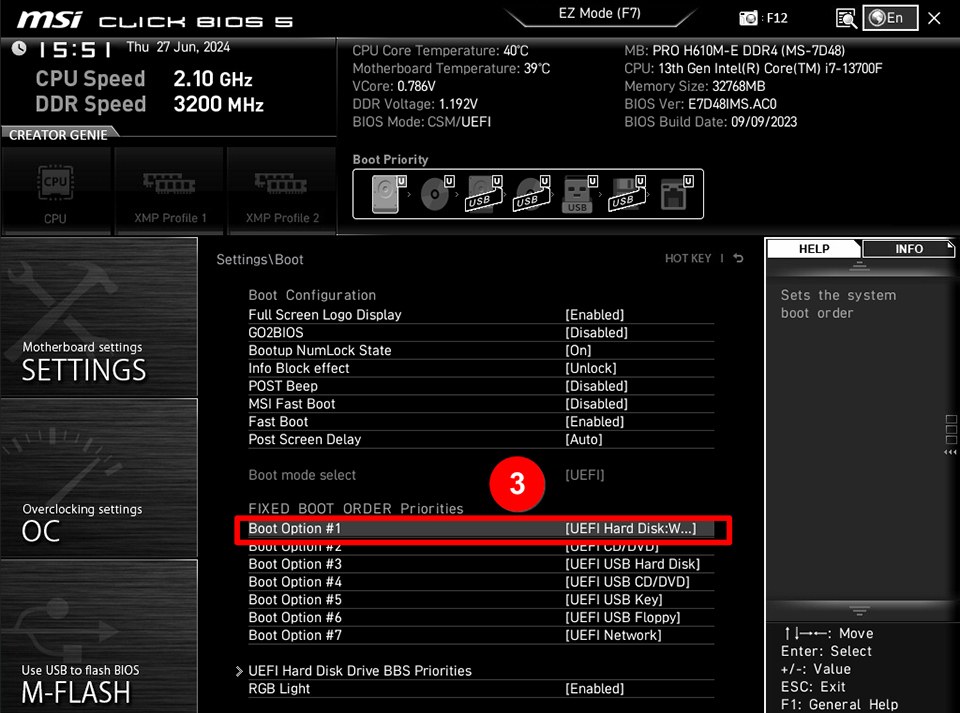
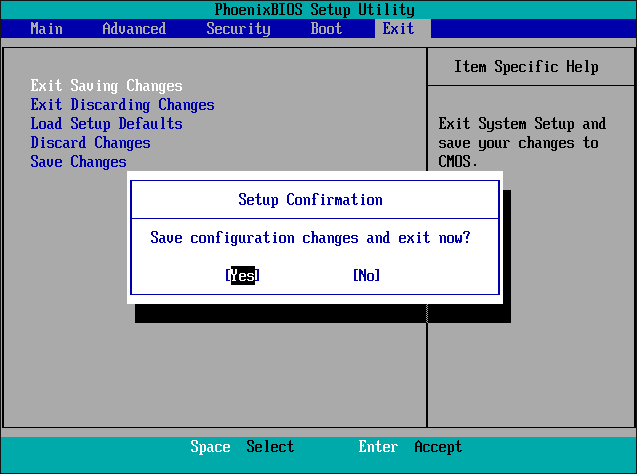
Save Settings By Pressing F10
after you did my steps press the F10 button on your keyboard and go into Linux Setup.
Boot Linux On Test Mode
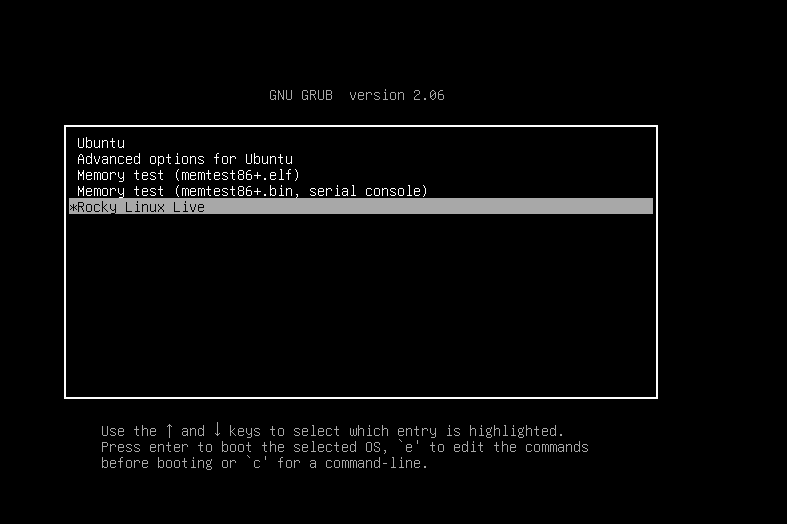
Not every distro has test mode but most of them including my recommends they has this option after you press F10 you will see something like the image that i put here and you should press either XXX Linux Live Boot or Like on this image shown Ubuntu ( Some distros writes down it like GUI mode ) this will put you on Linux Test Mode and then we can go to the another step.
Select Install XX Linux
and voila!! you’re in the Linux test environment but here is the problem you’re booting it on your flash disk and you need to install it on your Hard Drive to feel comfortable using it on your PC so move your mouse pointer on Install XX Linux app and double click on it
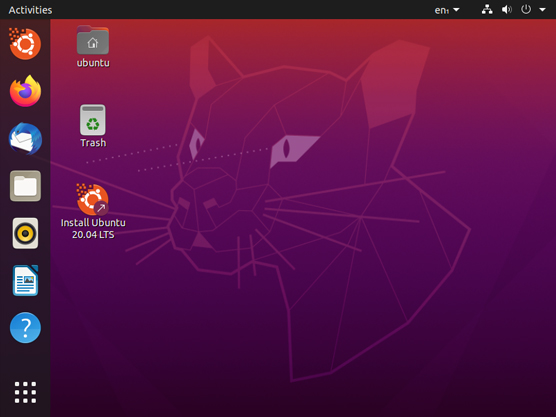
Select The Options For Yourself And Proceed to Install
Okay now we are right into Linux Setup so here we so many options but dont get so anxious at this point you did all this steps im gonna guide you through all , so here im gonna put a video of Linux TV about the linux installation process on the install linux app so you may get better while watching the video.
Enjoy Your Linux Ride!
I appreciate you to complete all of the steps of how to install linux and complete the linux installing guide feel free to submit questions on the blog also you can read our Windows Fixing Guide