
The Ultimate Guide: How to Fix Windows Update Errors, Bluescreen Crashes, & Windows 11 Bugs 2026

You know those moments, right?
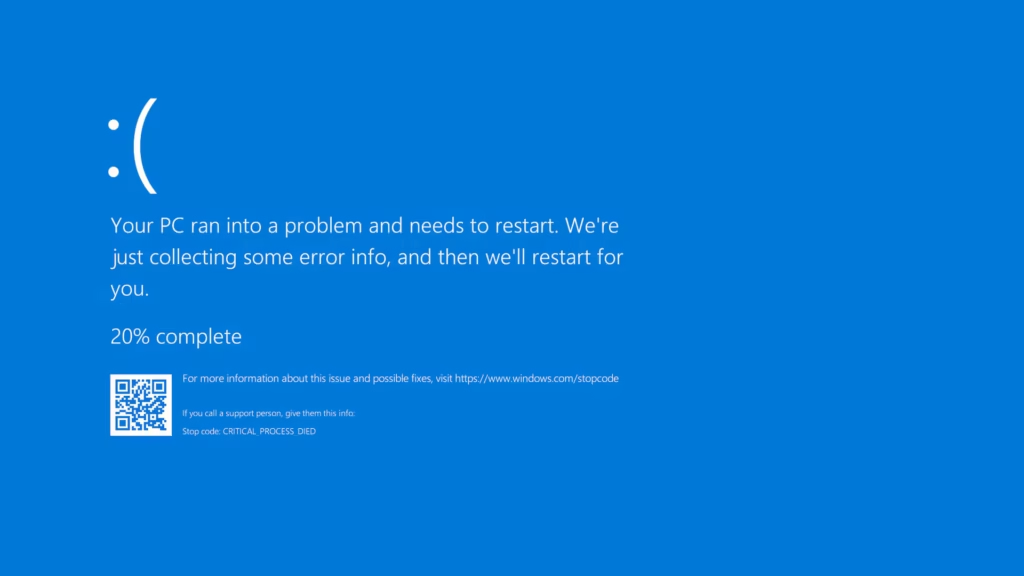
Your laptop with blue screen , system crashes, update bugs-it’s the worst! But don’t worry, you don’t have to throw that machine out the window here is how to fix windows update error.
With a little bit of know-how, we can sort most of them out.
We’re going to be tackling why that famous “blue screen of death” pops up, and what to do if you’re stuck in a Windows update loop, like many people trying to fix that infamous 0x80004005 error on Windows 11. So let’s do this.
What’s the Big Deal with a Blue Screen?
Basically, it’s the operating system throwing its hands up and saying “I’m out.” when windows encounters a critical problem that it can’t recover from safely, it’ll shut down to prevent further damage to your hardware and data. So that alarmingly colorful screen is actually there to protect you. The main culprits behind that ominous blue screen of death usually are: Outdated or faulty hardware drivers, Damaged or corrupted system files, failing hardware-your RAM might be acting up, your laptop’s getting too toasty, or the hard drive is going downhill.
An interrupted or corrupted windows update that didn’t install right.
Update issues are often behind an unstable computer so that’s what we’re going to look at first.
Let’s Address the Windows 11 0x80004005 Error
if you’re hunting for a solution to the 0x80004005 error in Windows 11, you’re looking at what the folks at microsoft call an “unspecified error.” it’s the type of error that’s not exactly chatty about its cause, and often occurs in a few specific situations: Windows update failures, trying to extract ZIP files but having a permissions hiccup, or issues with your network sharing setup. If the problem is happening because of a Windows update, the fixes are the same ones we’ll be discussing for general update issues.
How to Troubleshoot Windows Update Problems
if your PC is a drama queen that keeps crashing during updates or failing to install the latest features, it’s time to get rid of any junk files and give the update process a fresh start. Here’s our tried and tested method.
1. Give Windows Update Troubleshooter a Chance Start off with windows itself – it actually has tools to help. Hit up settings, go to “system,” and then click on “troubleshoot.” (on windows 10, you’ll find this under “update & security”). Once you’re there, click “other troubleshooters” and select “windows update,” then click “run.”
2.Clear the SoftwareDistribution Folder Sometimes the downloaded update files get corrupted. Time for a cleanup! Open the start menu, type “cmd,” right-click on “command prompt,” and select “run as administrator.” now, type these commands into command prompt, pressing enter after each one to halt the update services: net stop wuauserv net stop bits After that, press your windows key and r together, type c:\windows\softwaredistribution, and press enter. Delete every single thing in this folder. Windows will automatically regenerate it the next time it’s ready to update. Hop back into command prompt and get those services going again with: net start wuauserv net start bits
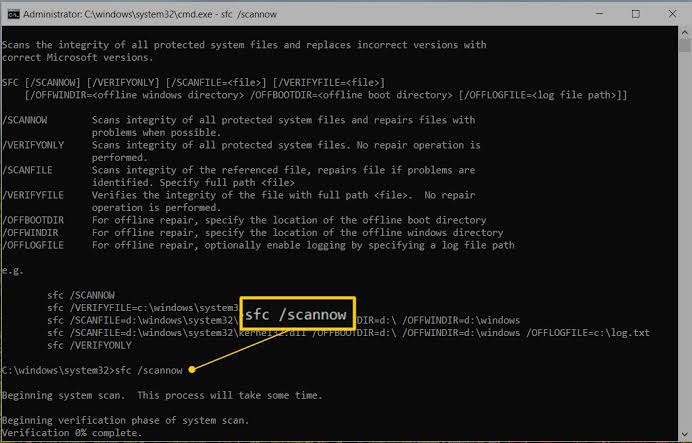
3. Repair Corrupt system files using sfc and dism Corrupt system files are another common culprit behind those pesky update errors, and can even cause the dreaded blue screen. So, open up that command prompt with administrative privileges once again. Then, run the system file checker tool by typing: sfc /scannow Let it run until it completes the scan, which will hopefully be 100%! Next up, use the deployment image servicing and management tool: DISM /Online /Cleanup-Image /RestoreHealth
General Fixes for Pesky PC Blue Screens
If troubleshooting your Windows updates didn’t resolve your crashing issue, then it’s time to check out your hardware and drivers. Consult your computer’s repair manual. Check the Specific error code Every time your computer bluescreens, it displays a stop code like criticalprocessdied or irqlnotlessorequal. Make a note of this code.
Googling it will often tell you exactly which hardware or driver is the culprit. Roll back recent updates or drivers Did your laptop start crashing right after a windows update or installing new hardware?
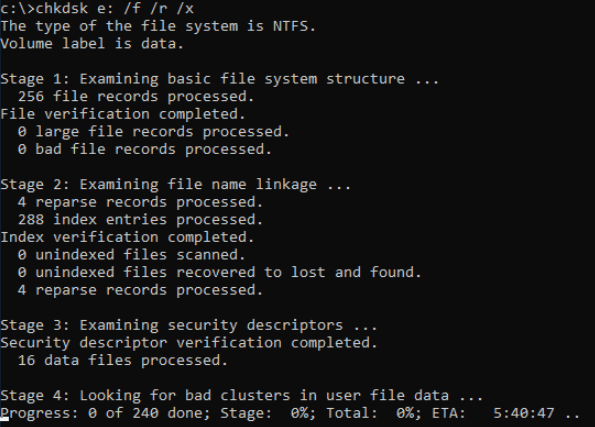
Try undoing that. For windows updates: hit up settings, navigate to “windows update,” click on “update history,” and select “uninstall updates.” for hardware drivers: right-click on your start button to open device manager. Right-click the hardware device you suspect is causing issues, select “properties,” navigate to the “driver” tab, and then click “roll back driver.” Check your Hardware’s health if your pc is overheating or if you have a laptop that gets physically tossed around frequently, the problem may be with the physical hardware. Use the windows memory diagnostic tool to check for RAM errors. Alternatively, open a command prompt as an administrator and run chkdsk /f /r to scan your hard drive for errors. A quick tip: always, always back up your data!
While the software solutions above are generally safe, persistent blue screens can be a warning sign that hardware is about to give up the ghost.
Dealing with windows errors can be extremely frustrating, but with these steps you can get back on track and enjoy a smoother, more secure, and most importantly, blue-screen-free computing experience!
if you cant find a solution here check out the Windows Support