
Valorant VAN 9003: 7 Easy Fixes That Actually Work

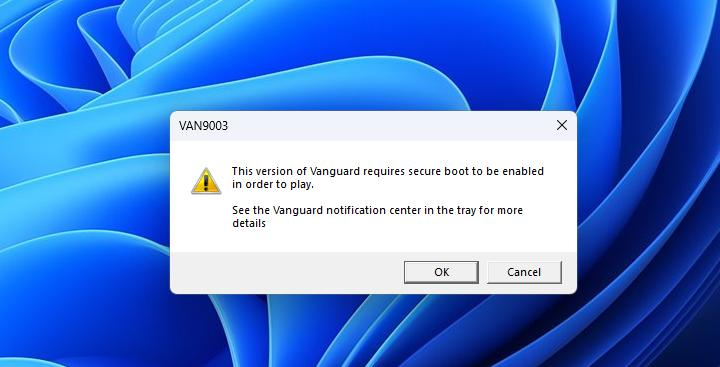
How I Fixed Valorant VAN 9003 Error
I ran into VAN 9003 out of nowhere. Valorant had been working fine, then one day Vanguard refused to launch because Secure Boot and TPM 2.0 weren’t enabled.
The weird part? Windows 11 was running without a single problem. Every other game opened normally, so at first I assumed Riot had broken something in an update.
It turned out the issue was on my PC—not because anything was damaged, but because my motherboard still had a couple of security settings turned off. That’s more common than most people realize, especially on systems that were upgraded to Windows 11 instead of being set up from scratch.
If you’re seeing the same error, don’t panic. You probably won’t need to reinstall Windows or Valorant. In most cases, it’s just a matter of changing one or two settings in the BIOS.
First, Check What Windows Reports
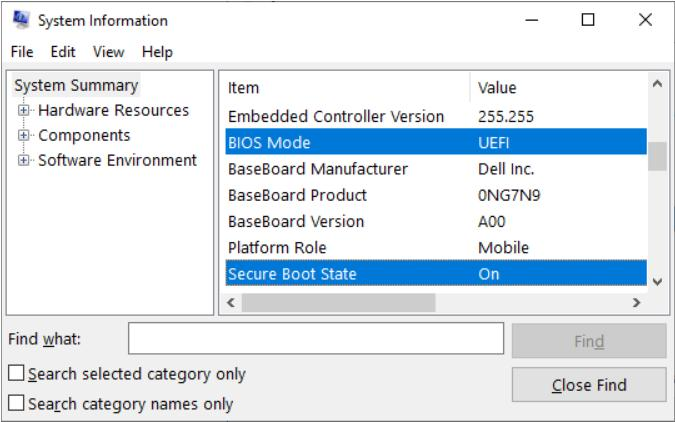
Before restarting your computer, it’s worth checking whether Windows can actually see Secure Boot.
Open the Start menu, type msinfo32, and press Enter. On the System Summary page, look for BIOS Mode and Secure Boot State.
- BIOS Mode: UEFI
- Secure Boot State: On
If BIOS Mode already says UEFI but Secure Boot is listed as Off, you’ve found the reason Vanguard is refusing to start.
Enable TPM and Secure Boot
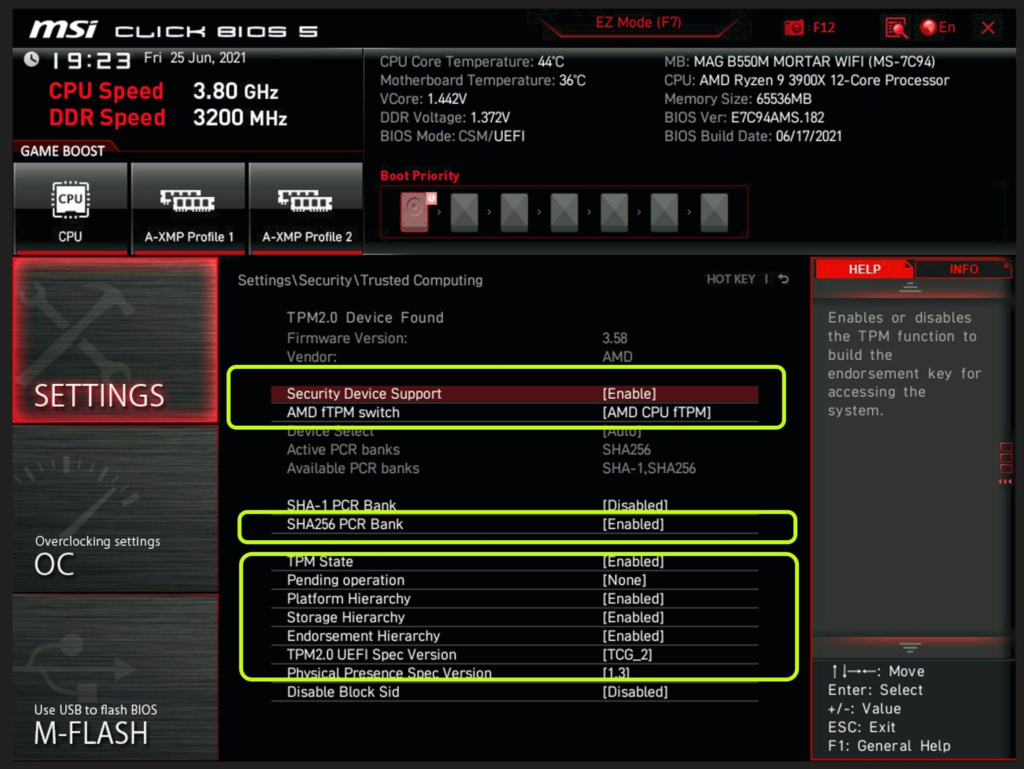
The fix isn’t inside Windows, so you’ll need to restart and enter your BIOS.
Depending on your motherboard, press Delete, F2, or another setup key while the computer starts.
Once you’re in, don’t worry if the menus look different from screenshots you’ve seen online. Every manufacturer organizes them differently.
Turn On TPM
Look for the TPM setting first.
- Intel boards usually call it PTT.
- AMD boards usually call it fTPM.
Turn it on if it isn’t already enabled.
Turn On Secure Boot
Next, find Secure Boot and enable it if it’s currently disabled.
One thing that’s worth trying if Secure Boot already says it’s enabled: switch it off, save your changes, restart, then go back into the BIOS and enable it again. It sounds strange, but I’ve seen Windows fail to recognize the setting until it was toggled.
Some Lenovo and Gigabyte motherboards also include a Restore Factory Keys option in the Secure Boot menu. If it’s available, use it before saving your changes.
If Secure Boot Is Greyed Out
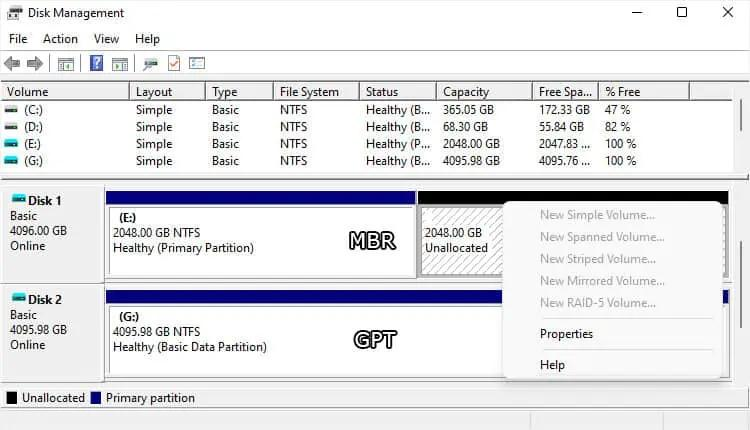
Sometimes the Secure Boot option can’t be enabled at all.
When that happens, the problem is usually the drive’s partition style.
Open Disk Management, right-click your Windows drive, choose Properties, then open the Volumes tab.
If it says MBR, you’ll need to convert the drive to GPT before Secure Boot becomes available.
Windows includes a utility called MBR2GPT for exactly this situation.
That’s Usually All It Takes
Save your BIOS settings, boot back into Windows, and launch Valorant again.
If Secure Boot and TPM are both enabled, Vanguard should start normally and the VAN 9003 error should disappear.
It isn’t the most obvious fix, but once those settings are configured correctly, you usually won’t have to think about them again unless you reset your BIOS or replace your motherboard.
also if you interested in this you may wanna look at : Valorant Error Code VAN 79: Causes and Definitive Solutions
